
Recover Deleted Files from a Hard Drive: A Step-by-Step Recovery Guide
varsha August 4, 2026 0 COMMENTS
Deleting an important file from a hard drive can feel irreversible at first. In many situations, however, the file is not erased from the storage device the moment you press Delete. What usually disappears first is the system reference that tells your computer where the file lives. Until that storage space is overwritten by new data, there may still be a chance to recover it.
That is why timing matters. If you keep using the same drive, install new software on it, download large files, or copy media to the same location, you may reduce the chance of successful recovery. The safest approach is to stay calm, stop unnecessary activity, and follow a structured process.
This guide explains how to recover deleted files from a hard drive quickly and safely. It is designed for everyday users, office workers, students, photographers, video editors, and anyone trying to restore documents, photos, project files, or archived data without making the situation worse.
If you want a guided recovery workflow instead of a technical command-line process, Recoverit data recovery is one option many users consider for deleted and lost file recovery.
Can deleted files really be recovered from a hard drive?
Often, yes—but not always.
Deleted files can sometimes be recovered when:
- the file was removed recently
- the drive is still readable
- the deleted data has not been overwritten
- the file system damage is limited
- the storage device does not have severe physical failure
Recovery becomes harder when:
- you keep using the same hard drive after deletion
- you save recovered files back to the same drive
- the drive has bad sectors or unusual noises
- the deleted data was on an SSD where TRIM may have already cleared blocks
- the drive was reformatted and heavily reused afterward
The right expectation is not “every file can be restored,” but rather “careful action improves the odds.” That mindset is more accurate and more helpful than promising a recovery result that depends on many variables.
What to do immediately after deleting files
- Stop writing new data to the drive
This is the single most important step. If the deleted file’s storage area gets reused, the original data may become partially or fully unrecoverable.
- Check the obvious places first
If the deletion was recent, check the Recycle Bin or Trash equivalent. Also search by file name, extension, or folder path in case the file was moved instead of deleted.
- Avoid installing recovery software on the affected drive
If the deleted files were stored on your main internal drive, install the recovery tool on another partition or a different storage device if possible.
- Do not restore recovered files to the same location
Always save recovered files to another drive, external disk, or separate destination. Restoring to the same drive increases overwrite risk.
- Watch for physical warning signs
Clicking sounds, repeated disconnects, unusual slowness, or failure to mount properly may indicate hardware damage. In that case, repeated scans may increase risk, and a professional data recovery lab may be the safer option.
Step-by-step: how to recover deleted files from a hard drive
Below is a practical three-step workflow that fits most logical deletion cases.
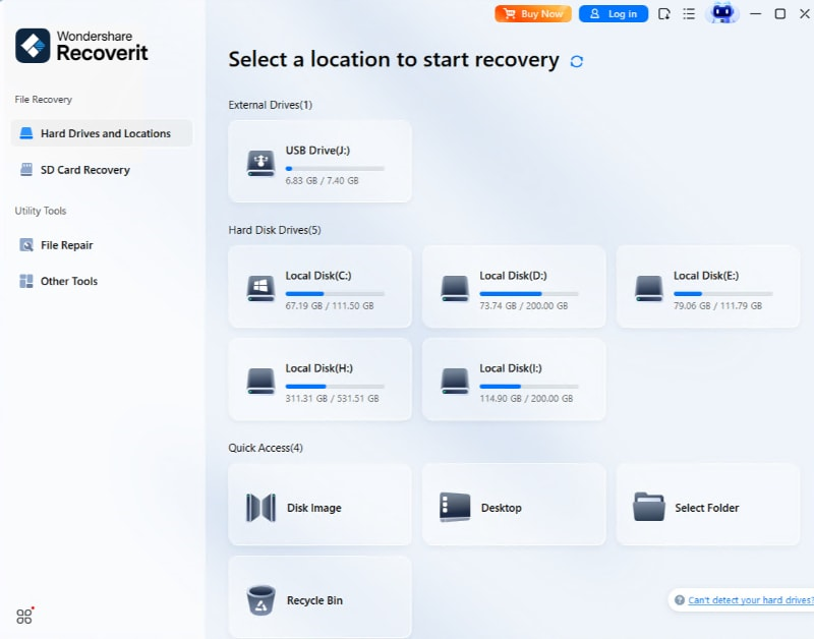
Step 1: Connect the drive safely and choose the correct source
If the deleted files were on an external hard drive, connect it to your computer and make sure the system recognizes it properly. If the files were deleted from an internal drive, reduce system activity as much as possible before scanning.
Open your recovery tool and select the affected hard drive or partition. A dedicated Windows Data Recovery workflow can be useful for people who want a visual process with file-type filtering, path-based browsing, and preview support.
Do not rush into changing advanced settings if you are unsure what they do. At this stage, the most important thing is to select the right location.
Quick check before moving on:
- Did you choose the correct hard drive?
- Was the file deleted from an internal or external drive?
- Is the drive readable and stable while connected?
Step 2: Scan the drive and narrow the results
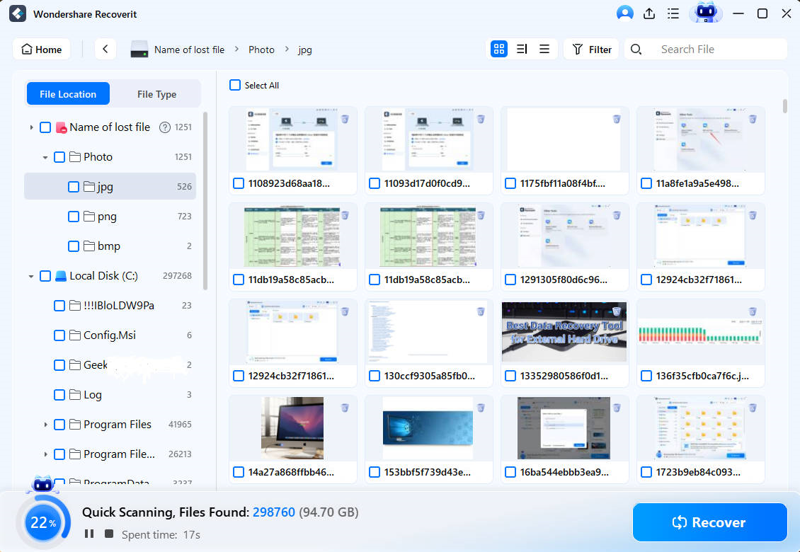
Start the scan and let the software search for deleted or lost file records. Depending on drive size, connection speed, and overall condition, this may take a few minutes or much longer.
During the scan, use filters to narrow results by:
- file type
- file size
- date modified
- original folder path
- keyword or file name
This matters because modern hard drives often contain thousands or even millions of files. Filtering helps you find relevant results faster and reduces mistakes during recovery.
If your main goal is hard drive recovery, this stage is especially important. Deep scan results, partition-level findings, and file categories may reveal items that do not appear with their original names or folder structure.
 Tips for better scan results:
- Let the scan continue if the file does not appear immediately.
- Check both deleted files and raw file categories.
- Search by extension such as DOCX, XLSX, JPG, MP4, PSD, ZIP, or PDF.
- If the drive was formatted, review deep scan or advanced recovery results.
Step 3: Preview the files and recover them to a different location
Once the scan finishes—or once your target files appear—preview them when possible. Preview helps confirm that a file is not only listed, but still intact enough to open.
Select the files you need and recover them to a different storage destination. That could be another internal partition, an external hard drive, a USB drive with enough free space, or a stable network location.
Do not restore files back to the same affected drive unless there is absolutely no alternative.
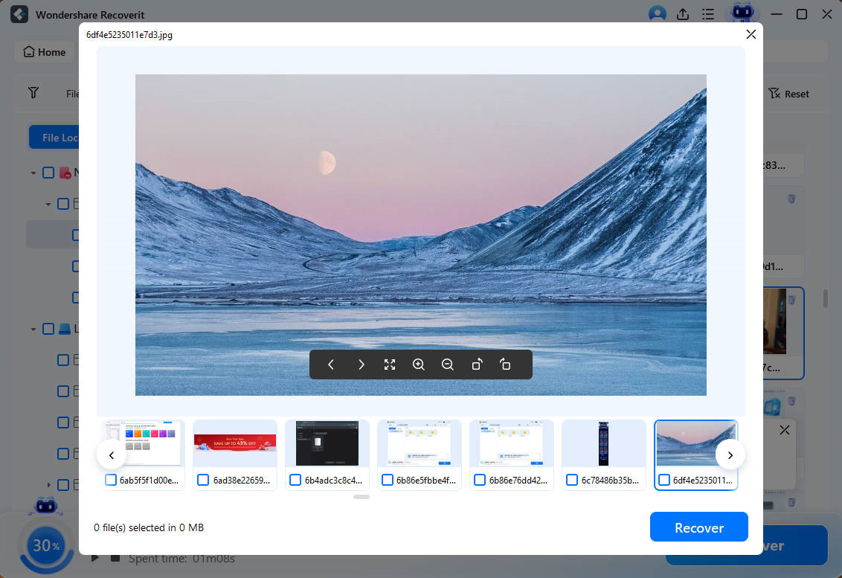 After recovery, open the restored files one by one. Check whether they are complete, readable, and not corrupted.
What kinds of files can usually be recovered?
Recovery tools may help retrieve many common file types, including:
- documents such as Word, Excel, PPT, PDF, and TXT
- photos such as JPG, PNG, TIFF, and some RAW formats
- videos such as MP4, MOV, AVI, and MKV
- audio such as MP3, WAV, and AAC
- compressed archives such as ZIP and RAR
- creative files such as PSD, AI, project assets, and exported media
The actual result depends on the file system, drive condition, overwrite level, and whether the file content is still physically present on the disk.
Common mistakes that reduce recovery chances
Installing software on the same deleted-file drive
This can overwrite exactly the data you are trying to recover.
Saving new files to the same hard drive
Even normal browsing, downloads, app updates, and cache creation may write new data.
Recovering everything without previewing
This wastes time and can leave you with a large batch of unusable or duplicate files.
Stopping the scan too early
Some files only appear later, especially on larger or partially damaged drives.
Ignoring signs of physical failure
If the drive is making unusual noises or disconnecting repeatedly, software-based recovery may not be the safest first move.
Can you recover deleted files from an SSD?
Sometimes, but SSD data recovery is often more difficult than traditional hard drive recovery. Many SSDs use TRIM, a feature that helps manage storage performance by clearing blocks that are no longer in use. When TRIM has already processed deleted data, recovery chances may drop significantly.
That does not mean SSD recovery is impossible in every case, but it does mean users should avoid unrealistic expectations. If your deleted files were stored on an SSD, speed and caution matter even more.
Important note: The presence of TRIM, encryption, file system behavior, and post-deletion usage all affect recoverability. A recovery scan may still be worth trying, but the result can vary.
When should you stop and seek professional help?
Software recovery is generally best for logical data loss, such as accidental deletion, quick formatting, partition issues, or missing files on a readable device. You should consider professional help when:
- the drive is making clicking or grinding sounds
- the system does not detect the drive consistently
- the disk overheats, disconnects, or fails to spin properly
- the lost data is highly valuable and repeated DIY attempts would be risky
- the storage device has suffered water, impact, or electrical damage
In those cases, aggressive scanning may make the situation worse. Professional labs can sometimes work with damaged media in controlled conditions, though outcomes and costs vary.
Final thoughts
Recovering deleted files from a hard drive is often possible, but the best results usually come from quick and careful action rather than panic. Stop writing new data, scan the correct drive, use filters to find the right files, preview what matters, and restore everything to a different destination.
A structured tool can simplify that process for non-technical users. If you want a guided option for deleted file recovery, drive scanning, and preview-based restore, Recoverit can fit the needs of users who prefer a visual workflow over trial-and-error methods.




Latest Articles
 iCopify Press Release Publication Requir…In Technology
- Layered Desserts Made with Mango Drink M…In Food
- Newsgiga Com Review: Is It Safe or Shoul…In Website
- Las Vegas Trade Show Display Rentals: Ma…In General
- MoneyNewsWeb Review: Finance Articles, G…In Website
- Cookie Consent Management: How to Handle…In Tech
- Fashionlamb Com Review: Features, Facts …In Website
- Posts ThriftyEvents.net: What Is the Web…In Website