
Managing multiple links on social media can become frustrating when platforms allow only one clickable URL in the bio. This is where Linktree becomes useful. It allows you to combine all your important links such as websites, blogs, videos, online stores, or contact pages into one single page. To manage and update this page, understanding linktree login is essential.
This guide explains Linktree in detail, including sign-up steps, login steps, dashboard usage, customisation, analytics, and common problems. Everything is written in simple English, with a natural flow, so you can understand and use Linktree without confusion.
Table of Contents
What Is Linktree and Why People Use It
Linktree is a link-in-bio tool that helps you share multiple links through one URL. Instead of changing your bio link every time you post something new, you share your Linktree link once and update the content inside it whenever needed.
People use Linktree because it keeps everything organised in one place. When someone clicks your link, they see a clean list of destinations you choose to show.
Common use cases include:
- Sharing multiple social media profiles
- Promoting blog posts or videos
- Directing users to products or services
- Adding contact or booking links
To manage all of this, regular access through linktree login is required.
How to Sign Up for a Linktree Account (Step-by-Step)
Creating a Linktree account is quick and beginner-friendly. You don’t need any technical skills. Follow these steps to sign up:
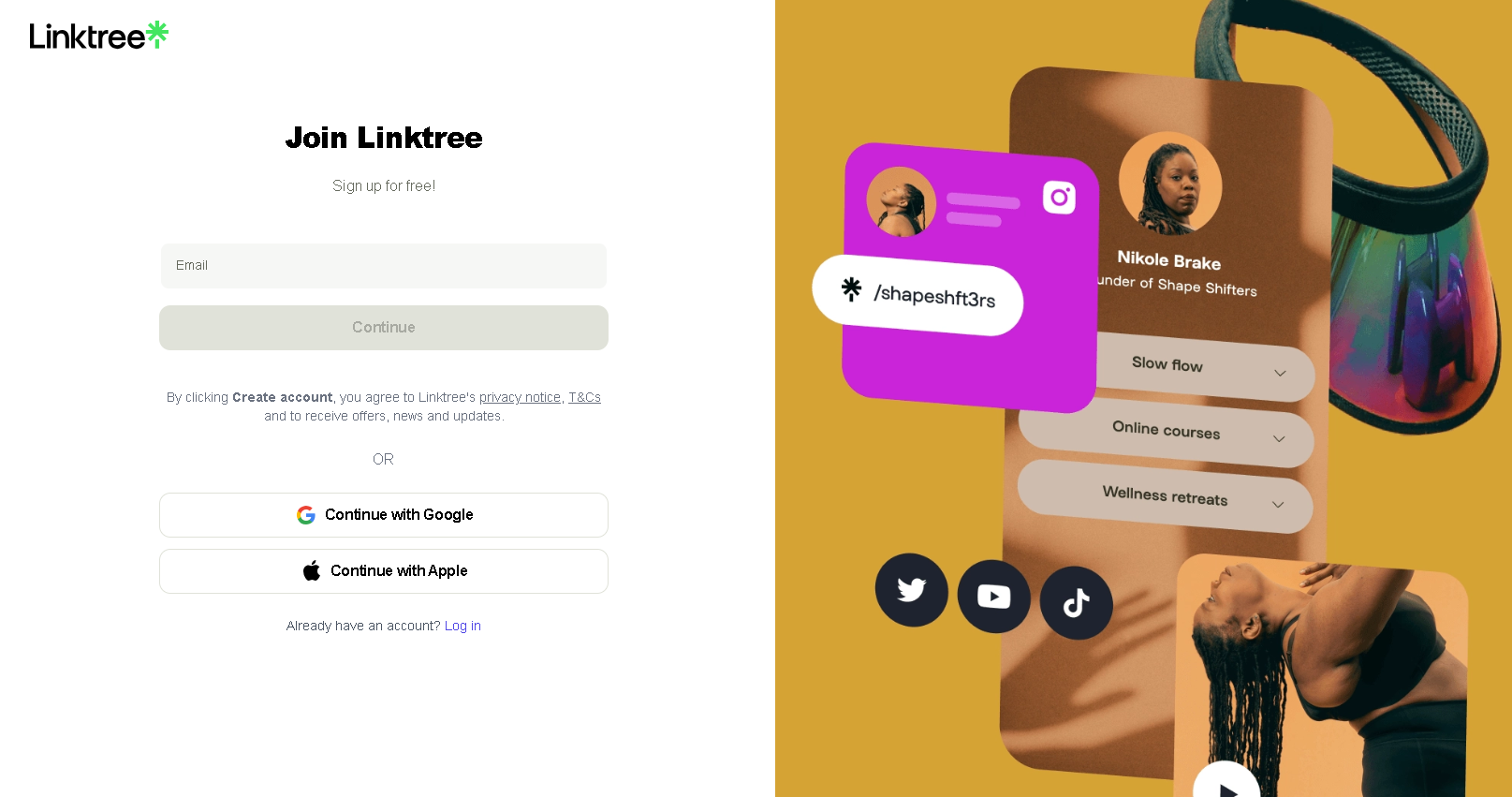
Step 1: Open your browser and visit the official Linktree website
Step 2: Click on Sign Up Free
Step 3: Enter your name, email address, and password
Step 4: Choose a username (this becomes part of your Linktree URL)
Step 5: Select a plan (you can start with the free option)
Step 6: Verify your email address to activate the account
After email verification, your account becomes active, and you can proceed to log in.
Why Linktree Login Is Important
Once your account is created, Linktree login is essential for managing your page and links. Logging in lets you keep your page updated and ensures your audience always sees current content.
Through login, you can:
- Add or remove links to share new content or remove outdated pages
- Reorder links to highlight your most important updates
- Edit titles and URLs for accuracy and clarity
- Update your profile image and bio to reflect your brand
- Check link performance using analytics to see what your audience clicks
Regular login keeps your page organized, secure, and effective. Without it, your links remain static, and your page may not reflect your latest content.
Linktree Login Steps: Simple and Easy to Follow
Accessing your Linktree account is quick and straightforward when you follow the correct steps. Logging in allows you to manage your links, customize your page, and check performance instantly. Here’s how to do it:
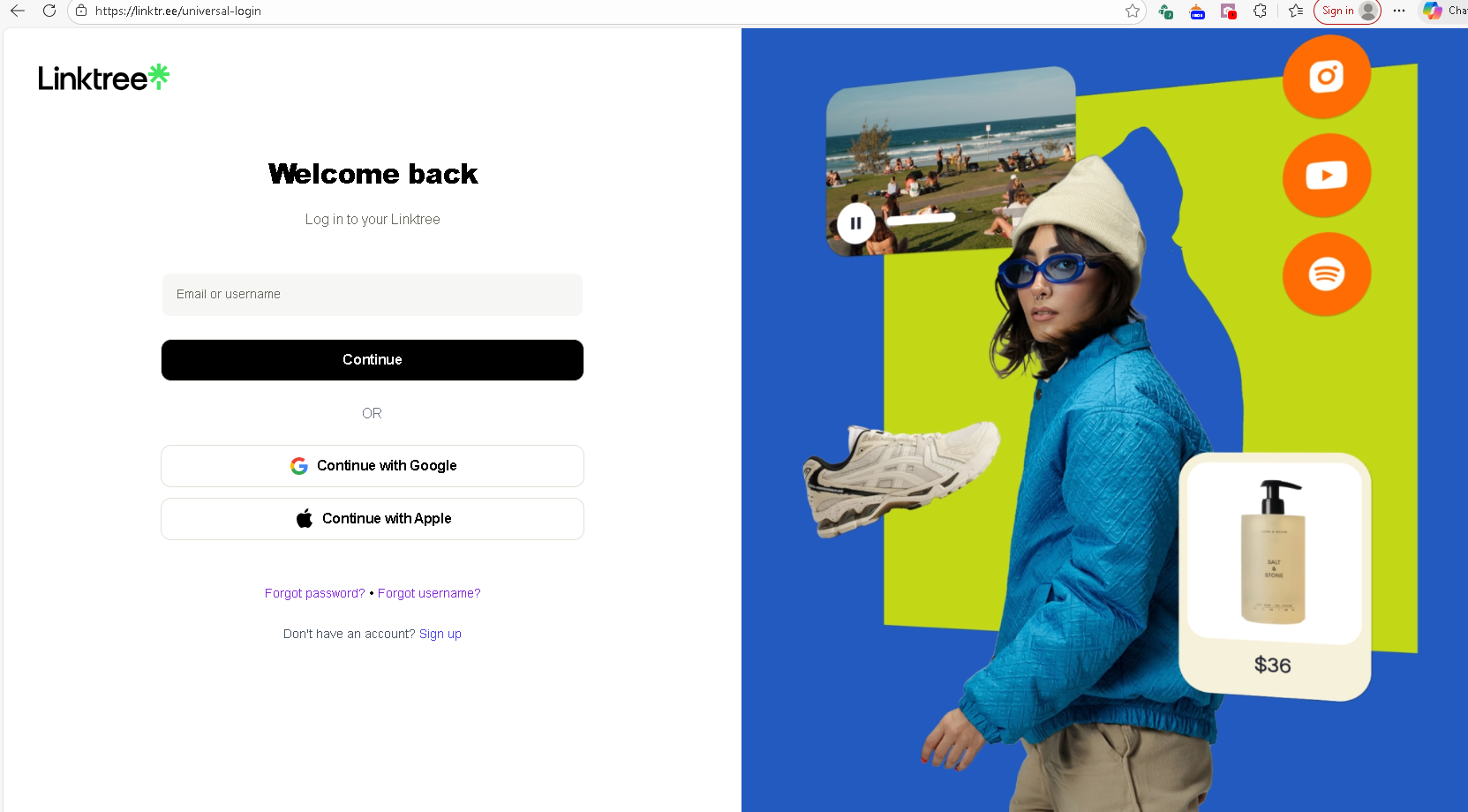
Step 1: Open the Login Page
Open your web browser on your computer or mobile device, and go to the official Linktree login page. You can also use the Linktree mobile app if you prefer managing your account from your phone.
Step 2: Enter Your Account Details
Type in the email address or username you used during sign-up, followed by your password. Make sure your password is entered correctly, paying attention to uppercase and lowercase letters, as it is case-sensitive.
Step 3: Click the Login Button
Once your details are entered, click the Log In button. If your credentials are correct, you will be redirected to your dashboard in just a few seconds.
Alternative Login Methods
If you created your account using Google or Apple, make sure to log in the same way. To do this:
- Click Continue with Google or Continue with Apple
- Select the account you used during registration
Using a different login method than the one you signed up with can prevent access to your account.
Forgot Your Password?
If you cannot remember your password, don’t worry. Linktree makes it easy to reset:
- Click Forgot Password on the login page
- Enter the email address associated with your account
- Follow the instructions sent to your inbox to create a new password
After resetting your password, return to the login page and sign in as usual.
Customizing Your Linktree Page
Customizing your Linktree page makes it look professional, personal, and aligned with your brand. A well-designed page not only looks appealing but also encourages visitors to explore your links.
From the Appearance section in your dashboard, you can easily:
- Change background colors and themes to match your style or branding
- Adjust button styles and fonts for a clean and readable layout
- Upload a profile photo to make your page recognizable
- Add a short bio to introduce yourself or your brand
Regularly logging in and updating your design ensures your page stays current and consistent with your latest content. A clean, visually appealing Linktree page builds trust and increases the chances of visitors clicking your links.
Understanding Linktree Analytics
After logging in, you can access Linktree analytics, which shows how visitors interact with your page. This information is essential for improving engagement and making informed decisions about your links.
Analytics provide insights such as:
- Which links get the most clicks – helping you understand what content interests your audience
- How often your page is viewed – showing your overall reach
- Which content performs better – allowing you to prioritize high-performing links
By using this data, you can reorder links, improve titles, or add new content that better engages your visitors. Regularly checking analytics ensures your page remains effective and relevant.
Common Linktree Login Issues and How to Fix Them
Occasionally, users may face problems during Linktree login, but most issues are simple to resolve. Common problems include:
- Incorrect email or password – often caused by typos or case-sensitive errors
- Using the wrong login method – for example, trying email login when you signed up with Google or Apple
- Browser or app issues – such as cached data causing errors Simple solutions include:
- Reset your password using the “Forgot Password” option
- Use the same sign-in method you selected during registration
- Clear browser cache or try a different browser or device
- Use the Linktree mobile app if login issues persist
Following these steps ensures smooth access to your account whenever you need it.
Security Tips for Your Linktree Account
Keeping your Linktree account secure is essential, especially if it’s linked to business or payment pages. Follow these simple tips:
- Use a strong, unique password – combine letters, numbers, and symbols, and don’t reuse it on other sites.
- Enable two-factor authentication (2FA) – adds an extra layer of protection by requiring a code during login.
- Avoid sharing login details – never give your password to others, even colleagues.
- Check account settings regularly – monitor for suspicious activity and review changes to links or design.
- Log out on shared devices and keep your email secure, as it’s used for password recovery.
Following these steps keeps your Linktree account safe, your links under control, and your audience’s trust intact.
Wrapping Up
Understanding linktree login gives you complete control over your link-sharing experience. From signing up and logging in to adding links, customising appearance, and tracking clicks, every feature becomes accessible once you log in.
When used properly, Linktree acts as a reliable hub for your online presence. Regular login keeps your page accurate, secure, and aligned with your goals whether personal or professional.
Frequently Asked Questions (FAQs)
Q1. How do I log in to my Linktree account?
To log in, go to the official Linktree login page or open the mobile app. Enter your registered email or username, type your password, and click Log In. If you signed up with Google or Apple, use the same method to access your account.
Q2. What should I do if I forget my Linktree password?
Click the Forgot Password link on the login page, enter your registered email, and follow the instructions sent to your inbox. Once reset, you can log in with your new password.
Q3. Can I customize my Linktree page after logging in?
Yes! After logging in, you can change background colors, adjust button styles and fonts, upload a profile photo, and add a short bio. Customization helps your page look professional and matches your branding.
Q4. How do I check which links are performing best?
Linktree provides analytics after login. You can see which links get the most clicks, how often your page is viewed, and which content your audience prefers. This data helps you prioritize and improve your links.
Q5. How can I keep my Linktree account secure?
Use a strong, unique password, enable two-factor authentication (2FA), avoid sharing login details, and review your account settings regularly. Logging out on shared devices also keeps your account safe.


Latest Articles
 Rs 125 Only On TheSpark Shop Batman Styl…In General
- My Best Hours Report: Productivity Track…In General
- Winkelbohrspindel Features That Make Com…In Technology
- APSBCL Retailer Login: Easy Guide For Li…In General
- Timewarp TaskUs Login, Setup, And Key Be…In Technology
- Kongotech Org Explained: A Hub For Socia…In Technology
- When Is Software Qugafaikle5.7.2 Release…In Technology
- Dsswordsmi: How It Transforms Digital Wo…In Technology