
If you’re setting up a print-on-demand business, you’re likely to come across Printify. It’s a platform designed to help entrepreneurs, artists, and online sellers create and sell custom products without the hassle of managing inventory or handling shipping. Before you get into designing and selling, you’ll need to understand the Printify login and account process. A smooth login experience ensures you can manage orders, connect stores, and access tools without disruption.
This guide walks you through everything from signing up to logging in, integrating your store, and securing your account all essential if you want to succeed using a print-on-demand platform like Printify.
Table of Contents
What Is Printify and Why Use It?
Printify is a print-on-demand platform that links online sellers with global print providers. You can upload designs and sell t-shirts, mugs, tote bags, hoodies, and more, without ever touching inventory. When a customer places an order, Printify handles printing and shipping directly.
It’s perfect for small business owners, designers, or anyone starting a dropshipping business. You focus on the creative side Printify takes care of order fulfillment and delivery.
Another major plus? Printify’s e-commerce integration options. You can easily connect your account with Shopify, Etsy, WooCommerce, Wix, and BigCommerce. This means less manual work and more time spent growing your brand.
Printify Sign Up: Quick Steps to Get Started
Before you reach the Printify login stage, you need to sign up. The process is simple and takes only a few minutes.
- Visit the Printify website and click Sign Up.
- Choose to sign up with your email or your Google account.
- Enter your name, email, and password.
- Verify your email address through the link sent to your inbox.
- Answer a few short questions about your store and product goals.
Once you’ve completed these steps, you’re all set to access your dashboard and begin customizing products.
Accessing the Printify Login Page and Logging In
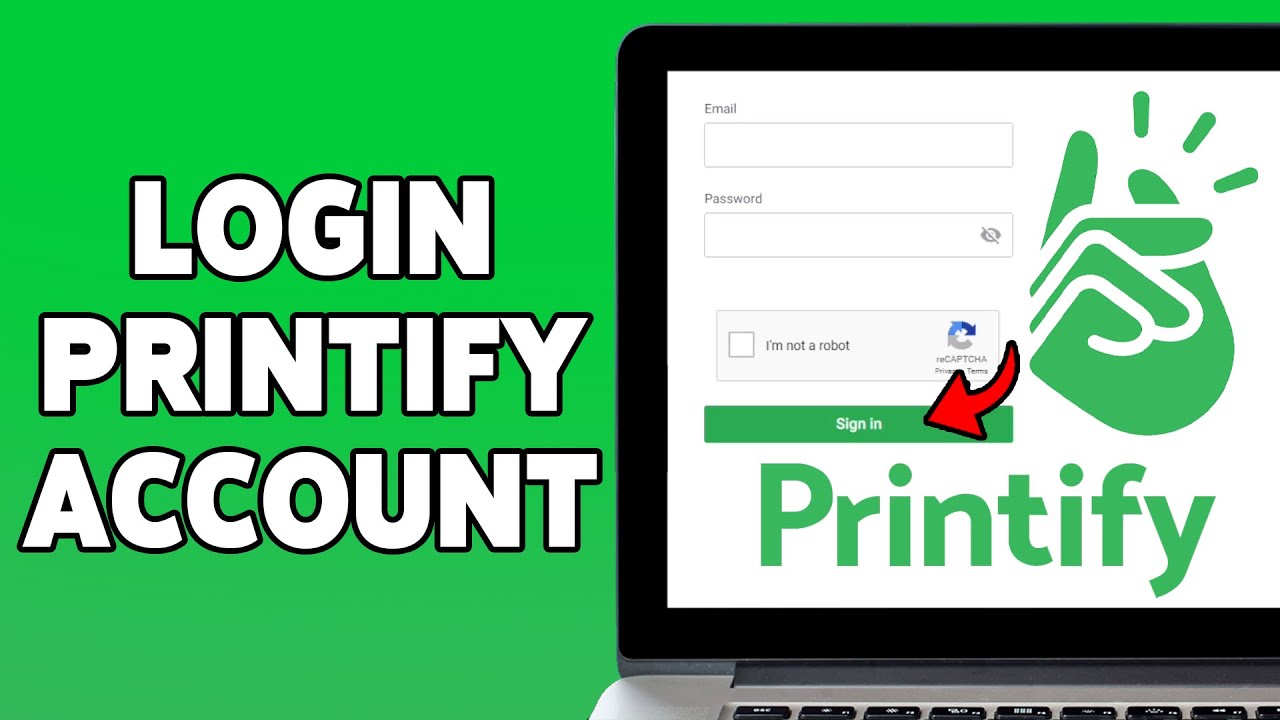
When your account is ready, go to the Printify homepage and click the Log In button in the top-right corner. You’ll be directed to a secure login page where you enter your email and password. If you signed up using Google, just use the Google login option.
Tip: Bookmark the login page for quicker access if you log in frequently.
If you encounter issues logging in, clear your browser cache or try another browser. You can also click Forgot Password to reset your credentials through email.
Security Tips After You Printify Login
Once you’re inside your dashboard, it’s important to secure your account. Here are a few smart moves:
Enable Two-Factor Authentication (2FA)
Turn on 2FA in your account settings. It adds a second verification step during login, usually through an app like Google Authenticator. This extra layer helps prevent unauthorized access.
Create Strong Passwords
Use a mix of uppercase and lowercase letters, numbers, and symbols. Avoid common passwords and update them regularly.
Be Careful with Extensions
Not all browser extensions are safe. Stick to official apps and avoid tools that request unnecessary access to your Printify account.
Integrating Your Store with Printify
Once logged in, the next step is connecting your store. From the dashboard, go to “Manage Stores” and choose your preferred e-commerce platform. Follow the instructions to grant access, and your product listings and orders will begin syncing.
If you run more than one store, Printify allows you to manage multiple accounts under one login. This gives you full control of your different catalogs, pricing strategies, and store branding—all from a single dashboard.
Using the Printify Dashboard
After a successful login, your dashboard becomes your command center. It’s where you manage products, monitor orders, and access design tools.
Product Creation & Mockup Generator
Use the mockup generator to upload artwork and see how it looks on products. You can adjust colors, sizes, and styles before publishing directly to your store.
Order and Fulfillment Tracking
The dashboard shows each order’s status: in production, shipped, or delivered. You can also view order history, pricing, and print provider info.
Help and Resources
Need help? Printify’s Help Center is available from the dashboard. It includes step-by-step guides, FAQs, and live chat support during working hours.
Printify Products
Printify offers a wide variety of custom products you can personalize and sell under your own brand. The product catalog includes more than 800 items across different categories, making it easy to find something that fits your niche or audience.
Here are some popular product categories you can sell through Printify:
- Apparel: T-shirts, hoodies, sweatshirts, leggings, tank tops, kids’ clothing
- Accessories: Tote bags, backpacks, phone cases, socks, hats
- Home & Living: Mugs, blankets, pillows, wall art, water bottles
- Stationery: Notebooks, stickers, greeting cards, journals
Each product listing includes sizing, material descriptions, pricing, and available print providers. You can choose based on shipping locations, base cost, and production time.
By offering a variety of print-on-demand items, you can tailor your store’s inventory to match trends or seasonal demands. Whether you focus on minimalistic t-shirt designs or detailed custom mugs, Printify makes it easy to list and sell products with zero upfront cost.
Final Thoughts
The printify login process is the starting point to accessing a range of features that help you run a streamlined and profitable online store. With a simple sign-up, seamless integrations, and user-friendly tools, Printify remains one of the top choices for ecommerce sellers looking to build a print-on-demand business.
Make sure to keep your account secure, maintain brand consistency, and take full advantage of the tools available. From designing products to managing orders and fulfillment, everything you need to operate smoothly is just a few clicks away.
Frequently Asked Questions
Q1. What should I do if I forget my password?
Click “Forgot Password” on the login page, and you’ll receive an email to reset it.
Q2. Can I use Printify without a store?
You can create products and browse the catalog, but to sell and fulfill orders, you must connect a store.
Q3. Does Printify have a mobile app?
Not yet, but their website works well on smartphones and tablets.
Q4. Can I change my login email?
Yes, go to account settings to update your email, then verify the new address.

RELATED ARTICLES



Latest Articles
 People Over Papers: Protecting Immigrant…In General
 Budget Vs. Quality: Comparing Pre-school…In Business
 Instagram IP Address Blocked: How Long I…In Technology
 Fast, compliant global background screen…In Tech Startups
 Balancing Investment and Protection with…In Insurance
 Japan Tour Packages for Travellers Who W…In Tips
 Getting What You Need: Align Your Action…In General
 Preventing Dust Damage With Proper Lapto…In Gadgets