
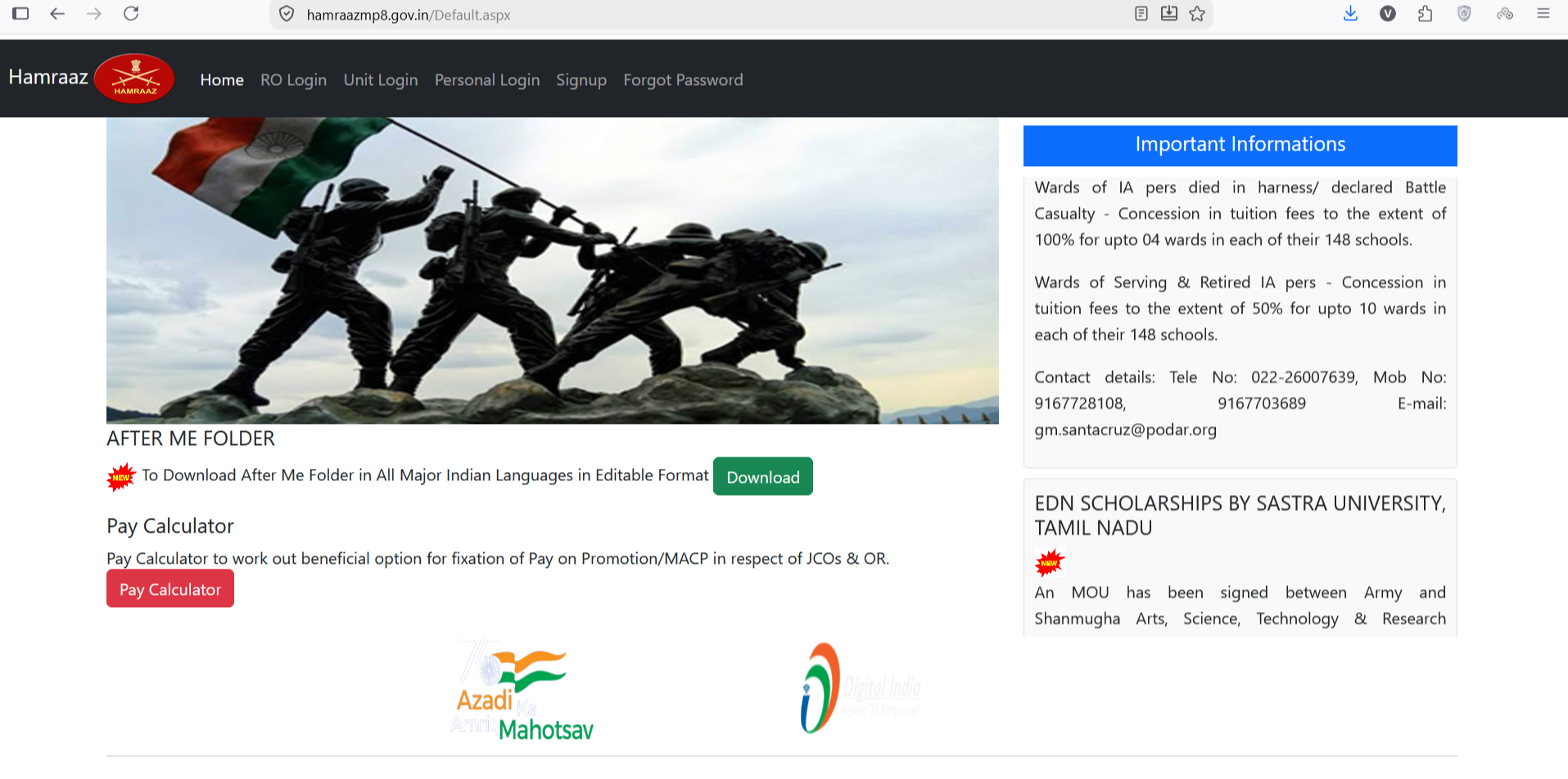
If you’re in the Indian Army, you’ve probably already used Hamraaz login, or you’re about to need it. There was a time when getting a salary slip meant standing in a queue at the unit office and waiting for someone to print it out. That’s no longer the case. Payslips, Form-16, leave records, and service details are all just a login away now, available whenever you need them.
This guide covers everything you need to know: how the portal works, how to register and log in, what to do if you forget your password, what you can access once you’re in, and how to keep your account secure.
What Is Hamraaz Login?
Hamraaz is the official online portal built for Indian Army personnel by the Adjutant General’s Branch, under its MP-8 directorate. It was created to move personnel administration away from paperwork and manual office visits, giving soldiers direct access to their own records.
Through the portal, you can check pay details, download tax documents, view leave balances, and track service history — all from one dashboard, without needing to go through a unit clerk or wait for office hours to open.
Who Can Use It
Access is limited to:
- Serving Army personnel — officers, JCOs, and Other Ranks
- Retired personnel and veterans, mainly for pension-related information
Family members, including spouses and dependents, cannot register or log in independently. This isn’t an oversight; it’s a deliberate restriction, since the portal holds sensitive information like PAN numbers, salary figures, and full service history that shouldn’t be accessible to anyone outside the intended user base.
Hamraaz Web, App, and MP8 — What’s the Difference?
New users often get confused by the different names floating around — Hamraaz Web, Hamraaz App, and Hamraaz MP8. The good news is they all lead back to the same system; they’re just different names and access points built up over the years.
- Hamraaz MP8 refers to the formal name tied to the branch that developed and maintains the system.
- Hamraaz Web is the browser-based version — the one accessed through a phone or laptop.
- Hamraaz App was a dedicated mobile application offering the same features through a downloadable app instead of a website.
Why the App Is No Longer Around
The Hamraaz mobile app was discontinued in March 2023. A lot of personnel who had gotten used to checking their payslip through the app icon on their phone were caught off guard by this. Since then, the web portal has been the only way to access these services.
This shift ended up being useful for one group in particular: iPhone users. The old app was only available on Android through the Play Store, which meant iOS users never had a mobile option in the first place. With everything now on the web, that gap has closed; the portal works across all standard browsers, regardless of device.
Sticking to the Official Link
Because the portal deals with financial and personal data, it’s worth being careful about where you’re logging in from. Fake or copycat websites do circulate, often shared through WhatsApp forwards or social media posts claiming to be shortcuts to the “real” site. Always type in or bookmark the correct official web address rather than clicking on links from unofficial sources.
How to Do Hamraaz Login: Step-by-Step
Once you understand the basic sequence, logging in becomes routine. Most problems people run into happen at the registration stage or from simple typing errors during login.
Registering for the First Time
If you haven’t used the portal before, you’ll need to complete registration before anything else:
- Enter your personal and service details so the system can verify your identity as army personnel.
- Enter your PAN number in capital letters — this trips up a lot of first-time users, since lowercase entries are often rejected without a clear explanation.
- Complete OTP or additional identity verification, depending on what the system asks for.
- Set your own username and password once your details are confirmed.
Take your time during this stage. A single mismatched detail can cause the registration to fail, forcing you to start over.
Logging In as an Existing User
For personnel who’ve already registered, the process is quick:
- Open the official portal in a secure browser.
- Enter your registered User ID and password.
- Complete the captcha or OTP, depending on what’s prompted.
- Submit to land on your personal dashboard.
Be careful with your password entry. Multiple incorrect attempts in a row can temporarily lock your account, which then requires going through the recovery process just to get back in. If you’re unsure of your password, it’s faster to reset it right away rather than guessing repeatedly.
An Alternate Route: Via the Indian Army Website
Some personnel prefer reaching the login page through the main Indian Army website instead of going directly to the portal. From there, selecting “Officers Login” or “JCO/OR Login,” depending on rank category, redirects to the same Hamraaz login screen. It’s the same destination through a different starting point — useful if you already have the main army site bookmarked.
How to Recover Your Hamraaz Login Password
Forgetting a password is common enough that the system has a built-in recovery process, so there’s no need to contact your unit office just to get back in.
1. Using the “Forgot Password” Option
On the login screen, you’ll find a “Forgot Password” link below the main fields. This takes you to a recovery screen that asks for identifying details tied to your service record rather than your current password.
Fill this in carefully; a small typo in your details can cause the request to be rejected, forcing you to restart the process.
2. Verifying Through OTP
After entering the required details, you’ll usually need to verify your identity through your Army Number along with an OTP sent to your registered contact number. This two-step check exists so that someone else can’t reset your password just by knowing your service number, which isn’t exactly private information among colleagues.
Once verified, set a new password. A few good habits here:
- Don’t reuse a password you’ve used before.
- Avoid anything predictable, like your date of birth or service number.
- Keep it private — don’t share it even temporarily with a unit mate.
If the OTP doesn’t arrive right away, wait a few minutes before requesting it again rather than sending multiple requests back to back, which can sometimes cause confusion between old and new codes.
What You Can Access After Hamraaz Login
Once you’re logged in, the dashboard functions as a full personal service record center. Here’s what’s typically available:
Monthly Payslip
The most-used feature by far. Every month’s salary slip — showing basic pay, allowances, and deductions — becomes available as a downloadable PDF. This is useful not just for your own records but as proof of income when applying for loans, credit cards, or rental agreements.
Form-16
During tax season, Form-16 is available directly through the portal, saving you from having to request it separately through your accounts office.
Service Records and Leave Balance
You can check your current posting, rank history, and leave balance without needing to submit a formal request to your unit — useful if you just want to confirm a promotion date or how many leave days you have left.
Pension Details for Veterans
Retired personnel can check pension-related information directly through the portal, without needing to visit a PCDA (Principal Controller of Defence Accounts) office in person — a real time-saver for veterans who’d otherwise have to travel for this information.
Pay Calculator
A built-in tool lets you estimate your expected salary after a promotion or under MACP (Modified Assured Career Progression), giving you a rough idea of what to expect financially before the change actually takes effect.
Downloading Your Payslip: Step-by-Step
Since this is the most searched-for function on the portal, here’s the exact process:
- Log in with your registered User ID and password.
- Go to the “Pay & Allowances” tab on your dashboard.
- Select the specific month and year you need.
- Enter your employee code if prompted.
- Click “Get Pay Slip.”
- Download the PDF once it displays on screen.
Keep in mind that payslips are generated one month at a time — if you need several months’ worth for a loan application, you’ll need to repeat this process for each one individually.
Reviewing your payslip regularly, rather than just downloading and filing it away, also helps you catch errors early — a missing allowance or an incorrect deduction is far easier to fix soon after it happens than months later.
Why Hamraaz Login is Worth Using
- Round-the-clock access — no need to time visits around office hours, especially useful for personnel in remote postings.
- Saves time — no paperwork, no repeated trips to the accounts office, no waiting on manual processing.
- Transparency — you see your own salary, leave, and service data directly, which cuts down on confusion or miscommunication that used to come from relying on secondhand information.
Security Tips to Keep in Mind
- Avoid public Wi-Fi when logging in. Public networks often lack proper encryption, making it easier for login details to be intercepted. Stick to a private, trusted connection.
- Never share your login credentials, even with a unit mate you trust completely. There are proper channels if someone else needs specific information from your account.
- Report anything unusual — an unrecognized login attempt, an unexpected password reset — to your unit’s IT cell immediately. Early reporting makes these issues much easier to contain.
It’s also worth glancing at your account occasionally, even when nothing seems wrong, just to catch anything unusual before it becomes a bigger problem.
Common Problems and Quick Fixes
- Account locked after failed attempts: Don’t keep retrying the same password — use the reset option instead, since repeated failed attempts can extend the lockout.
- OTP not received: Wait a couple of minutes before requesting again rather than sending multiple requests in quick succession. If it keeps failing, confirm your registered mobile number is correct.
- Site not loading or slow: This is often heavy server traffic, especially around month-end when everyone’s checking their payslip. Try refreshing after a short wait, clearing your browser cache, switching browsers, or double-checking you’re using the correct official web address.
Wrapping Up
Hamraaz login has genuinely simplified how Indian Army personnel manage their day-to-day administrative needs. What once required office visits and paperwork now takes a few minutes from a phone or laptop — payslips, Form-16, leave records, and pension details, all in one secure place.
That convenience works best when paired with good habits: keep your password private, avoid public networks, and act quickly if something feels off with your account. Register carefully the first time, especially your PAN formatting, and most login issues will resolve themselves with a bit of patience or a simple password reset.
At the end of the day, it’s more than just a login screen — it’s a reliable way to stay in control of your own service records, whenever you need them.
Frequently Asked Questions
Q1. What is the official Hamraaz login website?
It’s maintained by the Indian Army’s Adjutant General’s Branch (MP-8). Always confirm you’re on the correct, authorized link before entering any personal details.
Q2. Is the Hamraaz mobile app still available?
No, it was discontinued in March 2023. All access is now through the web portal, which works on Android, iOS, and desktop browsers alike.
Q3. Can family members access Hamraaz login?
No. Access is limited strictly to serving personnel and veterans.
Q4. How do I reset my Hamraaz password?
Use the “Forgot Password” option, verify with your Army Number and OTP, and set a new password.
Q5. Can veterans use Hamraaz login?
Yes, to check pension details without needing to visit a PCDA office.
Q6. Is Hamraaz login safe to use?
Yes, as long as you follow basic precautions: avoid public Wi-Fi, never share your credentials, and report suspicious activity to your unit’s IT cell right away.



Latest Articles
 Posts ThriftyEvents.net: What Is the Web…In Website
- GlobeInsightBlog Com: Website Features, …In Website
- Arattai App Review: What Makes It Differ…In App
- How to set up the electronics on a fishi…In Automotive
- SYFM Meaning Explained: Is This Texting …In Social Media
- How Much Working Capital Do You Need Acc…In Business
- What Does NM Mean in Text Message? Know …In Social Media
- Best Premium Laptops for Productivity &#…In Tech